> ## Documentation Index
> Fetch the complete documentation index at: https://s2.dev/docs/llms.txt
> Use this file to discover all available pages before exploring further.
# Private Networking
> Set up AWS PrivateLink to connect an AWS VPC to S2 privately and keep traffic off the public internet.
AWS PrivateLink allows you to connect to S2 privately from your VPC, without exposing traffic to the public internet. You also benefit from significantly [reduced egress costs](https://s2.dev/pricing).
S2 is currently available in AWS regions, so private networking uses AWS PrivateLink. Equivalent options, such as GCP Private Service Connect, will be added as S2 expands to other clouds.
## Setup
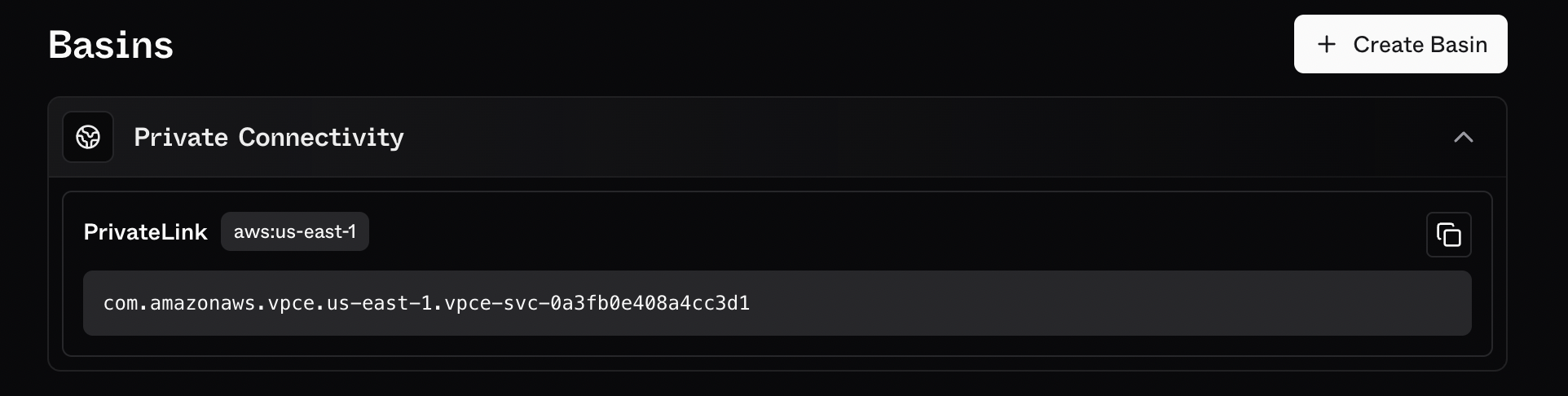
Go to the S2 dashboard, in the Basins tab, expand the **Private Connectivity** section to find your PrivateLink service name.
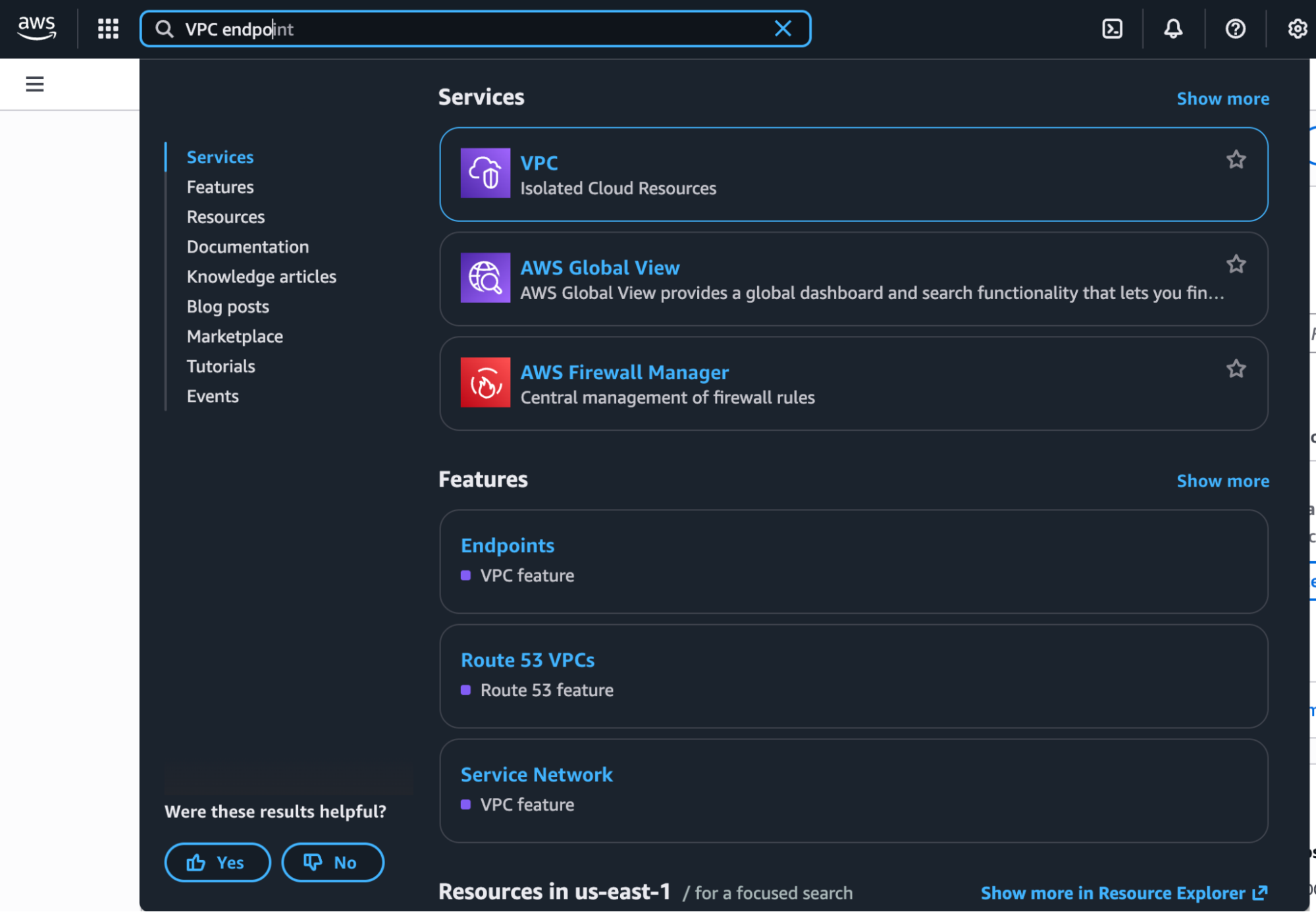
 Search for VPC endpoint on the AWS console and select **"Endpoints"**.
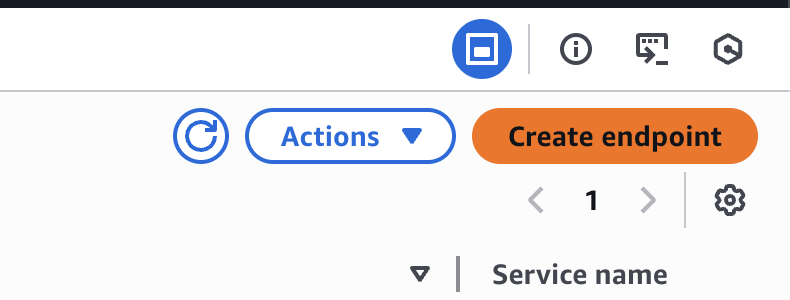
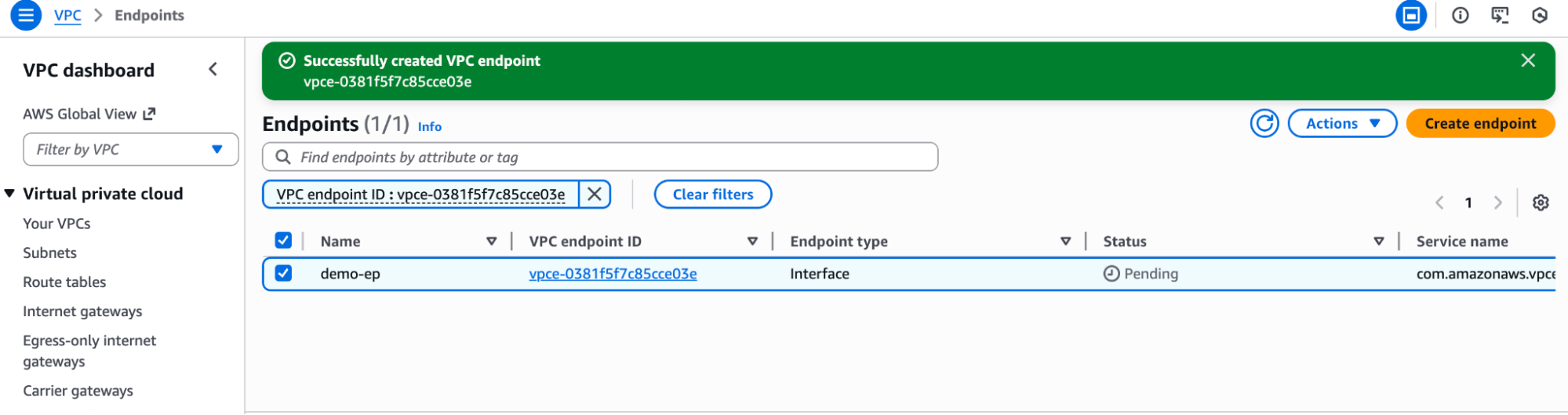
 Click on **"Create Endpoint"**.
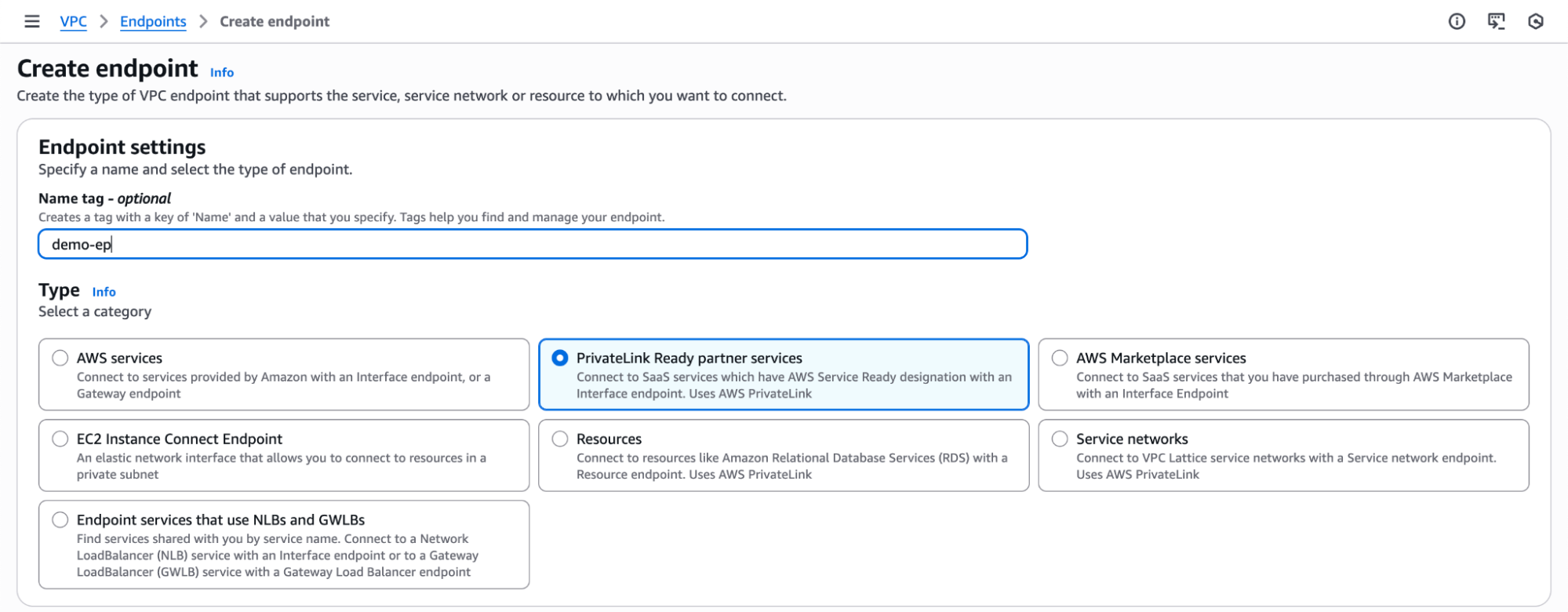
 Select **"PrivateLink Ready Partner Services"**.
 Enter the PrivateLink service name from the S2 dashboard and click on **"Verify Service"**.
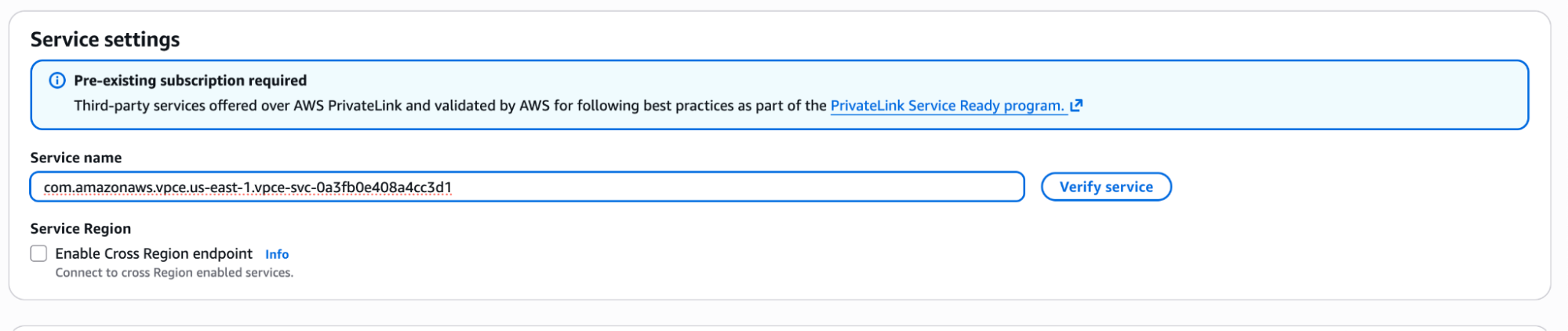 Select the appropriate **VPC**.
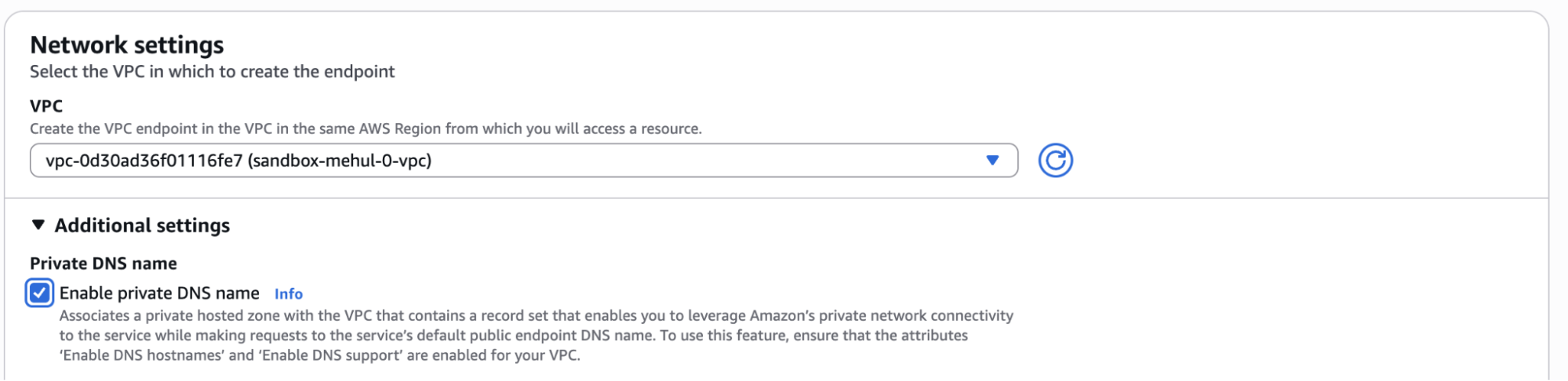
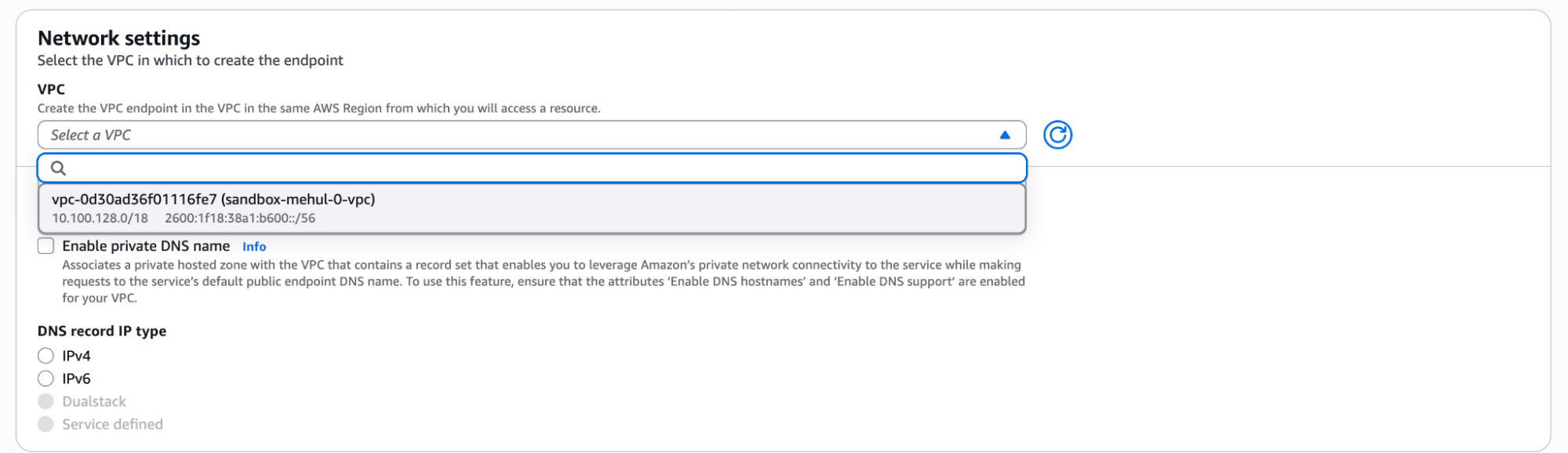 Enable private DNS name.
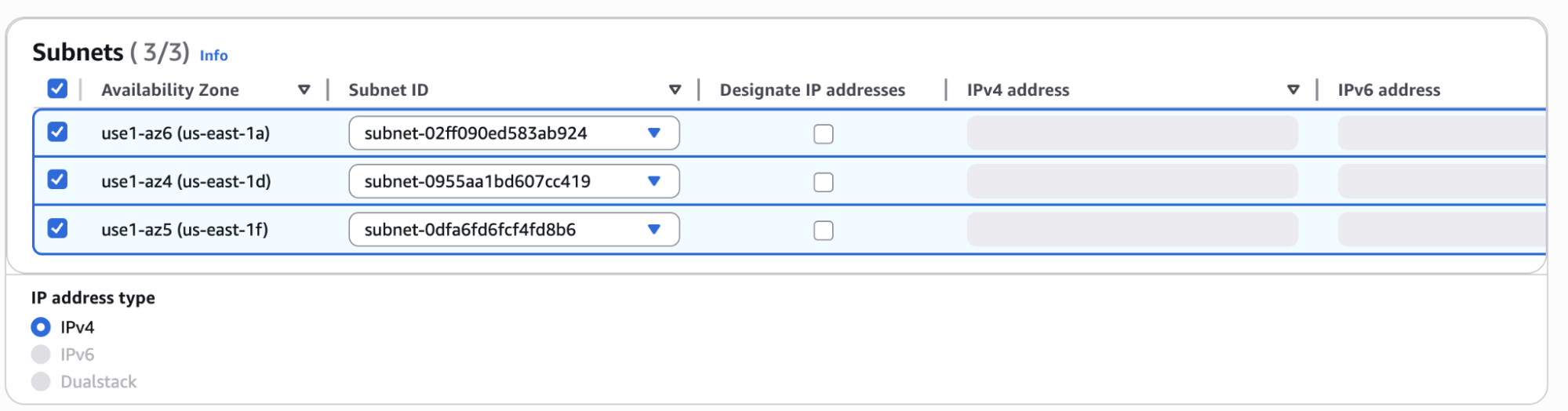
 Include subnets.
 Select appropriate **Security Groups**.

 HTTPS (port 443) must be allowed in both inbound and outbound security group rules.
Access can be left open to `0.0.0.0/0` or, preferably, restricted to the PrivateLink
endpoint's private IP address or CIDR range.
## Validate Your Connection
1. From a VM on your VPC, try resolving an S2 basin DNS record:
```bash theme={null}
nslookup ${basin}.b.s2.dev
```
You may need to clear caches or wait a few moments for this to take effect.
2. If everything has worked, this DNS record should resolve to a private IPv4 address (e.g., starting with `10.*`).
HTTPS (port 443) must be allowed in both inbound and outbound security group rules.
Access can be left open to `0.0.0.0/0` or, preferably, restricted to the PrivateLink
endpoint's private IP address or CIDR range.
## Validate Your Connection
1. From a VM on your VPC, try resolving an S2 basin DNS record:
```bash theme={null}
nslookup ${basin}.b.s2.dev
```
You may need to clear caches or wait a few moments for this to take effect.
2. If everything has worked, this DNS record should resolve to a private IPv4 address (e.g., starting with `10.*`).