

Overview
Studio lets you:- Read records from any stream, starting from a tail offset, sequence number, or timestamp
- Stream records live as they arrive
- Append records individually, line-by-line, or as a JSON array
- Trim records up to a sequence number to reclaim storage
- Fence a stream to enforce exclusive write access
Opening Studio
Navigate to any basin in the dashboard, then click Studio in the stream list header. You can also switch basins and streams directly from within Studio using the selectors at the top.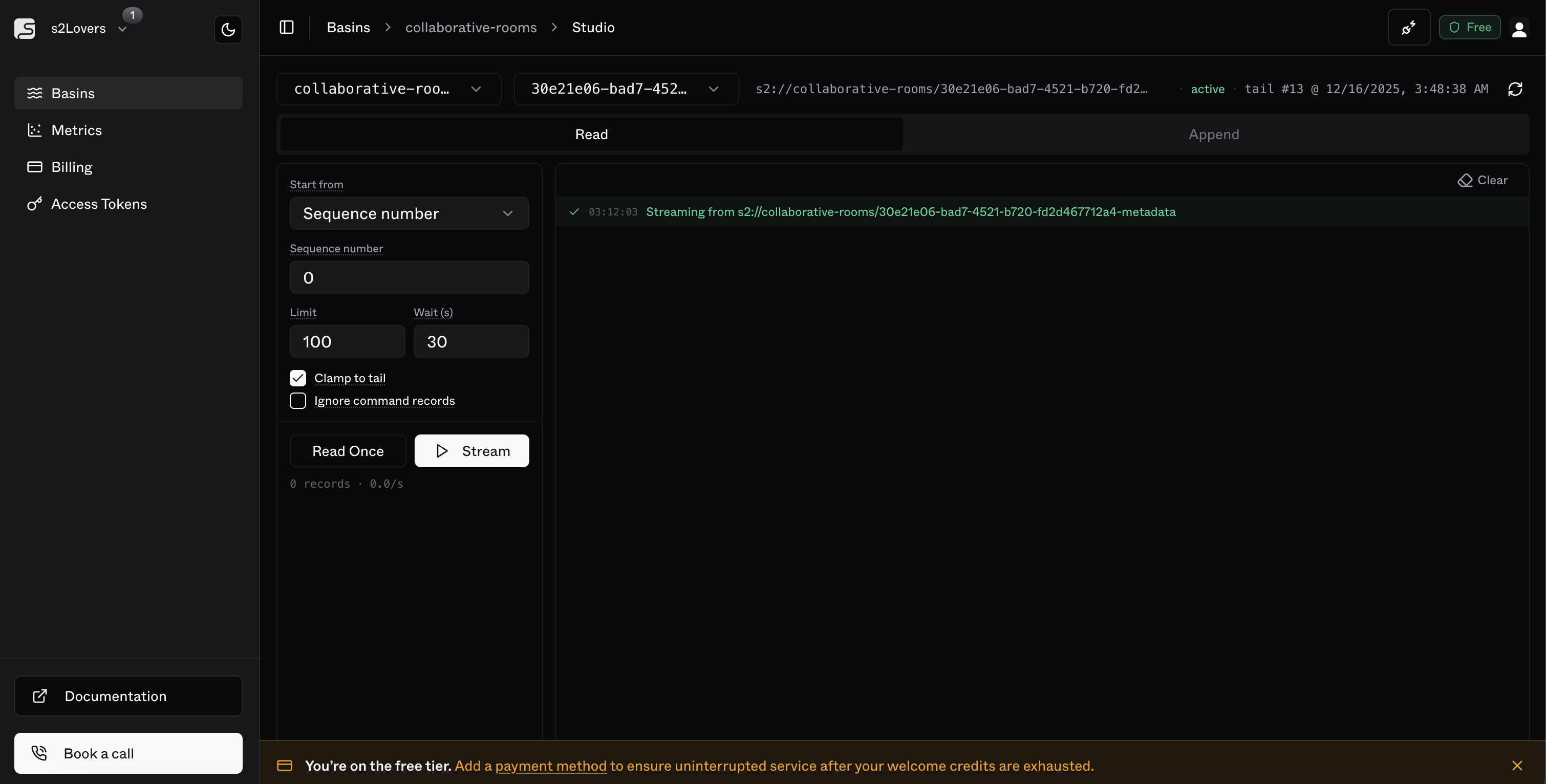
Connection
By default, Studio connects to S2. You can override this to point at s2-lite for local development. Click the connection badge in the top-right header to open the connection settings.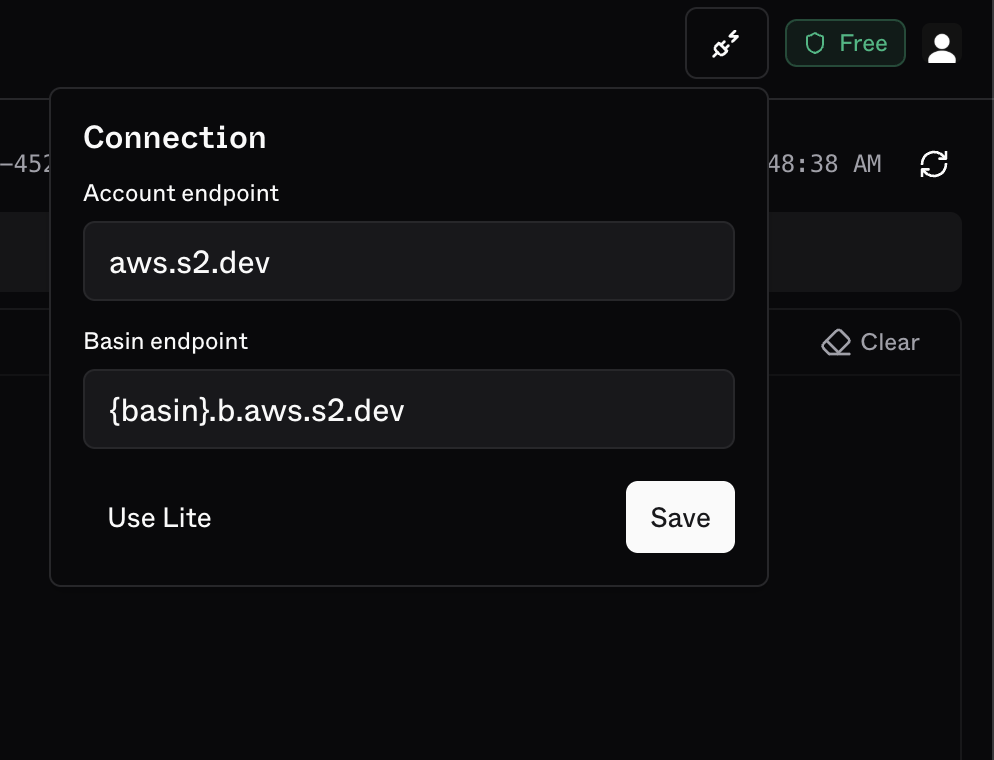
Connecting to s2-lite
1
Start s2-lite with TLS
Run s2-lite with a self-signed certificate so the browser can connect over HTTPS:Lite listens on
https://localhost (port 443) by default.2
Set the connection endpoint
In the connection popover, click Use Lite. This pre-fills both endpoints with 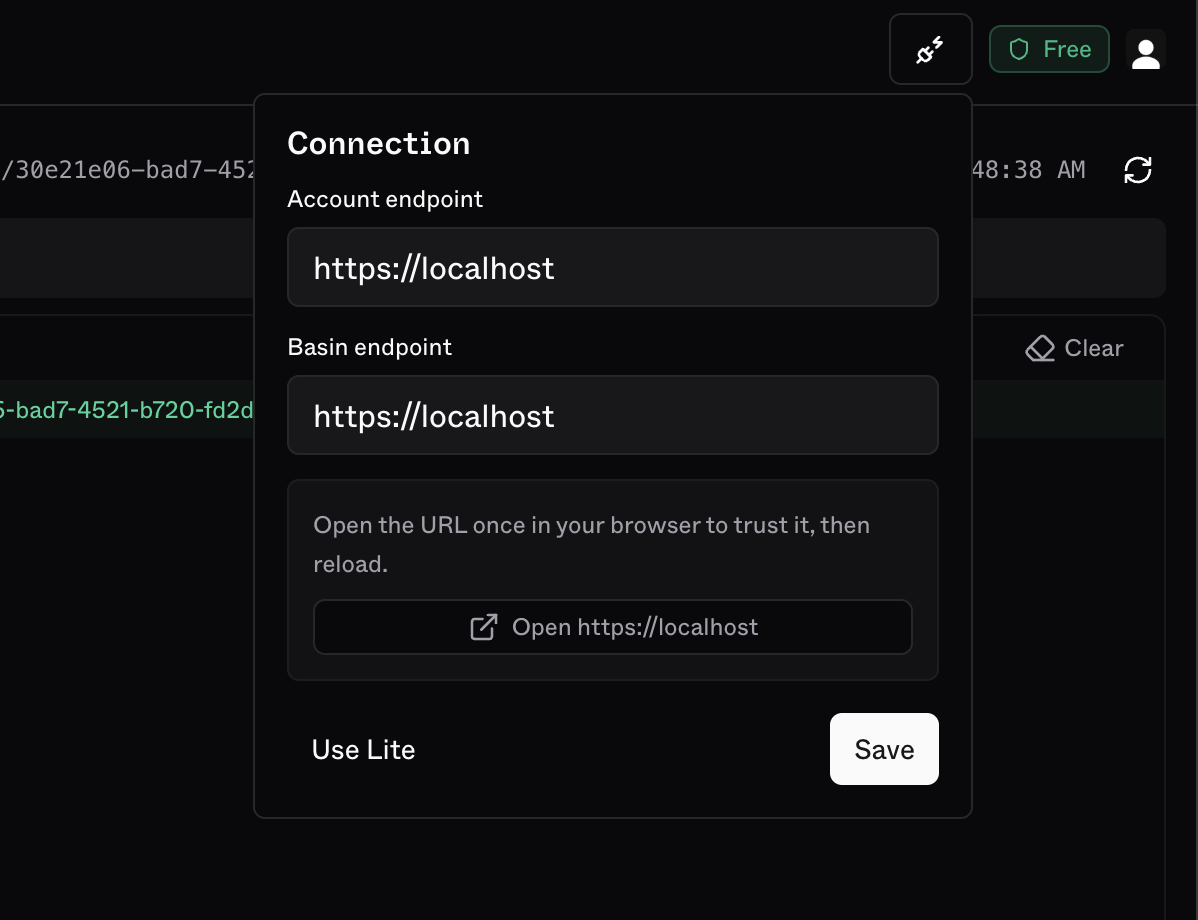
https://localhost.3
Trust the certificate
Since Lite uses a self-signed certificate, you need to trust it in your browser once.The popover will show a prompt — click Open https://localhost to open it in a new tab, then accept the browser security warning.
After accepting the cert, come back to Studio and click Save to apply the connection. The page will reload and connect to your local Lite instance.
Read
The Read tab lets you fetch records from the selected stream.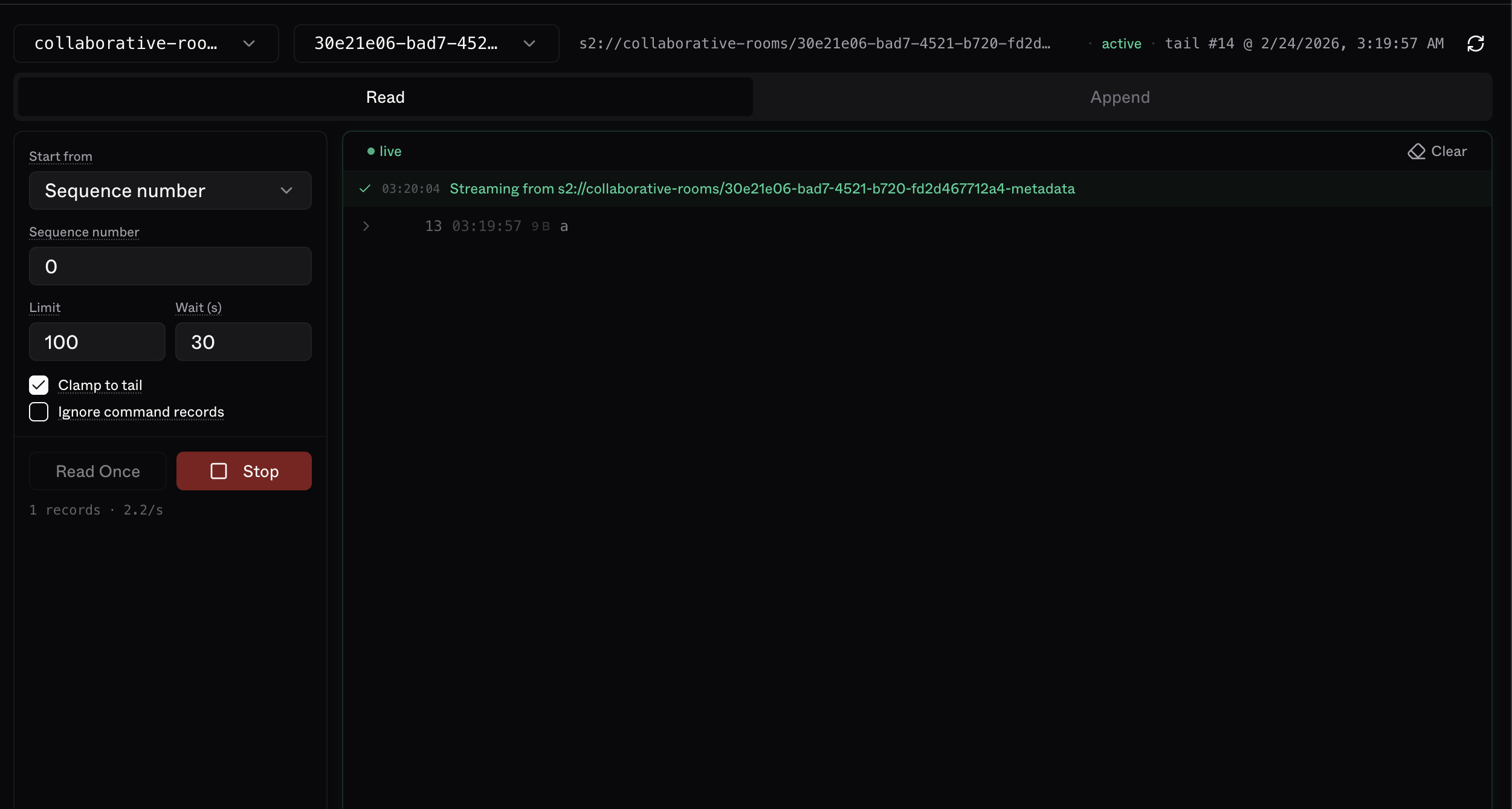
Read Once vs Stream
- Read Once — fetches a single batch with the current settings
- Stream — opens a continuous session that delivers records as they arrive
Append
The Append tab lets you write records to the selected stream.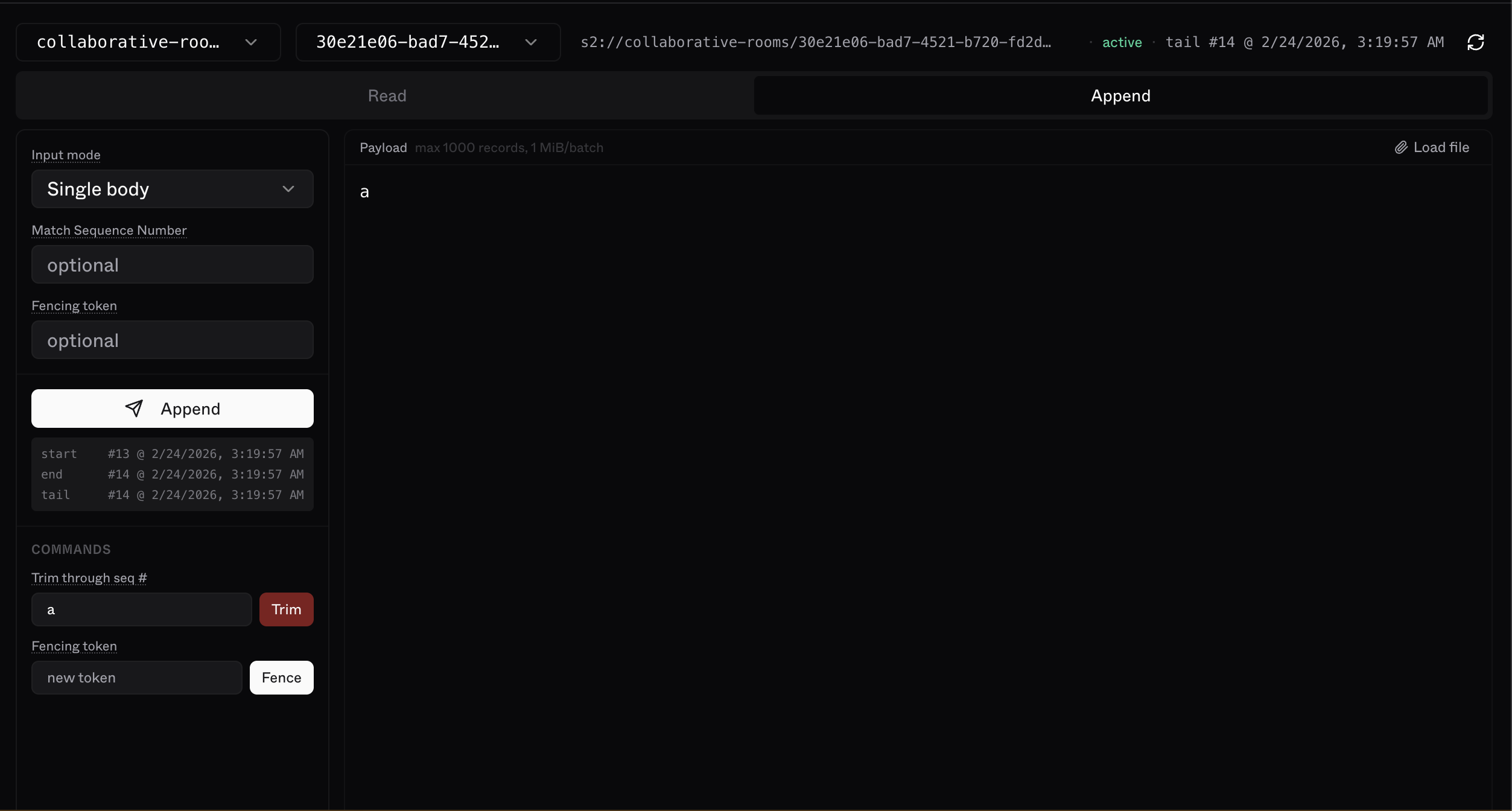
Input modes
You can also load a file directly into the editor — the input mode is auto-detected from the file extension (
.json → JSON array, .jsonl/.ndjson → one per line, .txt → single body).